A CRM That Lives Next to Your WhatsApp Chats
Every customer who writes in becomes a contact. Organise them with tags, custom attributes, notes and follow-up dates, move deals across a drag-and-drop pipeline, and keep consent right with opt-outs that follow the phone number. Contacts are on the Team and Business plans; the sales pipeline is on Business.
✦ 14-day free trial · Your own WhatsApp Business number · Meta bills messages directly
Contacts With Everything Your Team Needs
Each contact carries tags, custom attributes, a pipeline stage, an owner, a follow-up date and an opt-in status, and you can filter the list by any of them. Search by name or phone, open a contact’s page to see where they came from, and update tags, notes, stage and follow-up from the contact panel right beside their chat in the shared inbox. Each row has an Open chat or Start chat button, and ticking contacts, or selecting everyone who matches your filters, starts a new campaign from the selection.
- Tags and custom attributes
- Internal notes and follow-up dates
- Filter by tag, stage, assignee, follow-up, opt-in, engagement and dates
- Source of every contact, including Click-to-WhatsApp ads
- Open chat or Start chat from any contact row
A Drag-and-Drop Pipeline With Your Own Stages
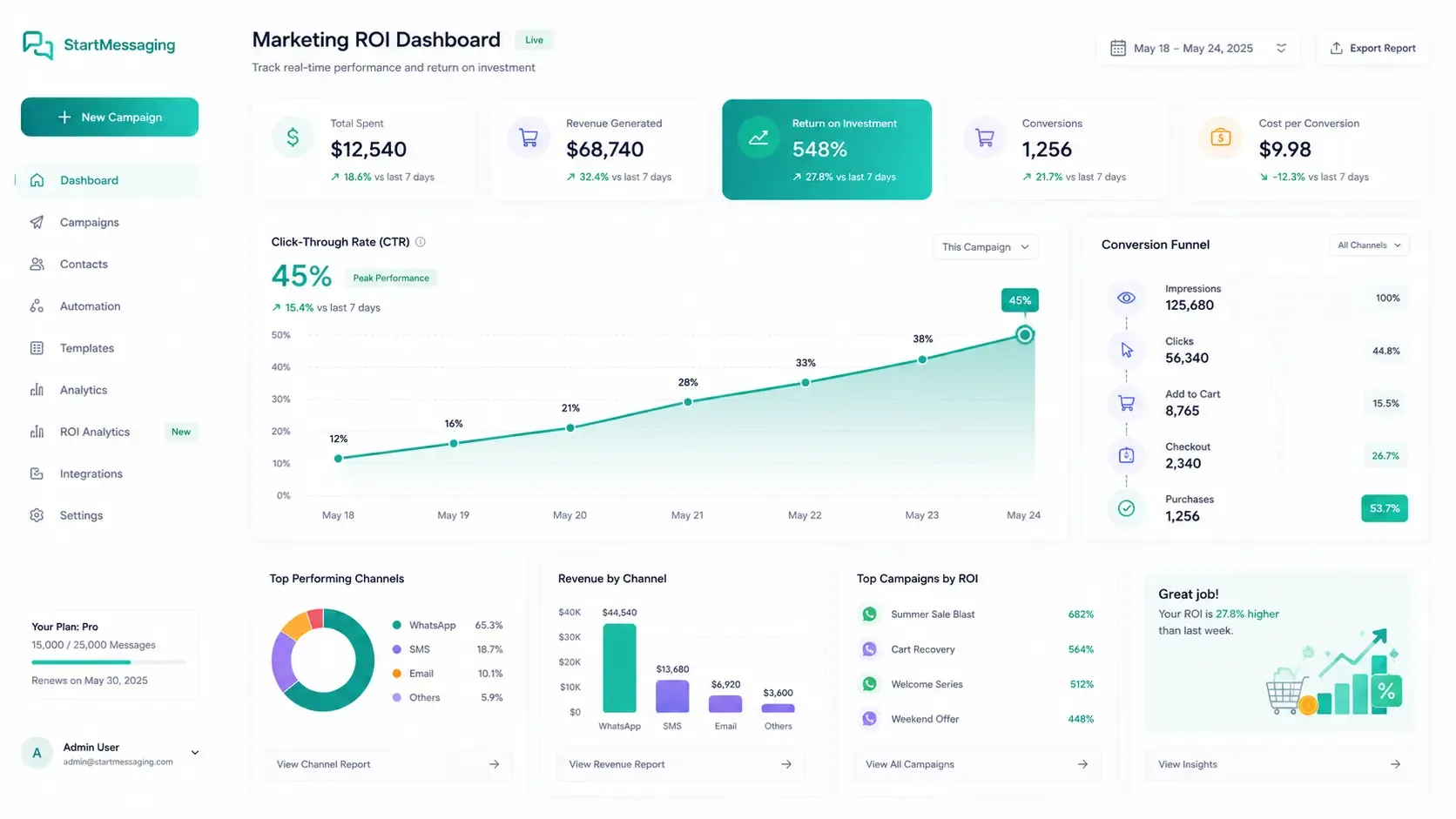
The pipeline shows your contacts as cards on a board, one column per stage, so you can see where every enquiry or deal stands. Drag a card to another stage, or use its Move to… menu on a phone. Managers create, rename, reorder and delete stages; deleting a stage never deletes contacts, they simply move to No stage. Chatbot flows can move a contact into a stage automatically. The pipeline is on the Business plan, together with the conversions your campaigns earn; on Team you can see where leads are, but not move them.
- Custom stages you name and order
- Filter the board by assignee, tags or stage
- Chatbot flows can change the stage for you
- Sales reported by your system credited to the campaign that brought them (Business)
Clean Data and Consent You Can Trust
No contact groups to maintain: segment with tags and pipeline stages instead.
-
Tags
Label contacts by interest, status or campaign. Tags drive campaign audiences, filters and chatbot flows, which can add or remove them.
-
Custom Attributes
Store your own fields, such as city or last order ID, and use them as template variables in campaigns.
-
Notes and Follow-Ups
Leave internal notes the customer never sees and set a follow-up date, then filter contacts by follow-up to see who needs a call back. A note you no longer need can be deleted for everyone.
-
Source Tracking
Every contact records where it came from: WhatsApp, manual, CSV, link, API or Click-to-WhatsApp ad. Ad contacts keep the ad headline, text and click ID.
-
Opt-Outs That Follow the Number
A customer who replies STOP can’t be messaged from the inbox, campaigns, automations or the API until they reply START. The opt-out is kept against the phone number, so deleting and re-adding the contact doesn’t lift it.
-
CSV Import and Export
Import a CSV and map its columns to phone, name, email, tags and custom fields. Export the contacts on the current page, with your filters, as a CSV.
-
Birthdays, Anniversaries and Renewals
Filter by a date saved in any contact field: today, tomorrow, the next 7 or 30 days, or a set number of days ahead or ago. Turn on Every year for birthdays and anniversaries, or leave it off for a one-time date such as a renewal.
-
Engagement and Segments
Each contact shows Highly engaged, At risk, Win back or Never engaged, from when they last wrote to you or read your messages, and you can filter by it. On the Business plan, engagement, date and pipeline-stage filters become segments: campaign audiences that update themselves.
-
Reachability Marks
“Offers off in WhatsApp” means the customer turned off your offers in WhatsApp: marketing campaigns skip them until the date shown, while utility messages and your replies still reach them. “WhatsApp couldn’t reach” means WhatsApp couldn’t deliver to the number: campaigns skip it until the date shown, or until they message you.
-
Contacts With a WhatsApp Username
Someone who writes from a WhatsApp username, without sharing their number, still becomes a contact. Your replies reach them, and Meta adds the number once you have talked. Over the API they carry a waUserId and no phone yet.
Bring Your Existing Customers In, With Consent
1. Upload a CSV
Use a UTF-8 CSV with numbers in international format, such as +919876543210. Duplicates and invalid numbers are skipped.
2. Map the columns
Match each column to phone, name, email, tags or a custom field.
3. Confirm consent
Tick the consent box only if these customers agreed to hear from you. Without it, they import as not opted in and can’t be messaged.
WhatsApp CRM vs. Spreadsheets and a Phone
Where customer data lives, and how much of it you keep up to date by hand.
| Capability | StartMessaging CRM | Spreadsheets | Shared phone / WhatsApp Business app |
|---|---|---|---|
| Contact created when a customer writes in | ✓ Automatic | ✗ Typed in by hand | Saved on the phone only |
| Customer details beside the chat | ✓ Contact panel in the inbox | ✗ Separate file | Labels only |
| Sales pipeline | ✓ Drag-and-drop board with custom stages (Business) | A status column edited by hand | |
| Contact source | ✓ Recorded automatically, with ad details for Click-to-WhatsApp | Only if someone fills it in | |
| Opt-outs (STOP/START) | ✓ Recorded per number and checked on every send | Tracked by hand | Tracked by hand |
| Sync with your own systems | ✓ REST API and contact webhooks | Manual export and import |
Upsert customers from your store or CRM by phone number
curl -X POST https://waba-api.startmessaging.com/api/v1/contacts \
  -H "Authorization: Bearer sm_live_your_api_key" \
  -H "Content-Type: application/json" \
  -H "Idempotency-Key: contact-sync-A-1042" \
  -d '{
    "phone": "+919812345678",
    "name": "Asha Verma",
    "email": "asha@example.com",
    "tags": { "add": ["website-order"] },
    "attributes": { "city": "Pune", "lastOrderId": "A-1042" }
  }'
const res = await fetch('https://waba-api.startmessaging.com/api/v1/contacts', {
method: 'POST',
headers: {
'Authorization': 'Bearer ' + process.env.SM_API_KEY, // sm_live_your_api_key
'Content-Type': 'application/json',
'Idempotency-Key': 'contact-sync-A-1042',
},
body: JSON.stringify({
phone: '+919812345678',
name: 'Asha Verma',
email: 'asha@example.com',
tags: { add: ['website-order'] },
attributes: { city: 'Pune', lastOrderId: 'A-1042' },
}),
});
// 201 = created, 200 = updated (upsert by phone)
const { data } = await res.json();
console.log(data.created, data.contact.id);import os, requests
res = requests.post(
'https://waba-api.startmessaging.com/api/v1/contacts',
headers={
'Authorization': f"Bearer {os.environ['SM_API_KEY']}", # sm_live_your_api_key
'Idempotency-Key': 'contact-sync-A-1042',
},
json={
'phone': '+919812345678',
'name': 'Asha Verma',
'email': 'asha@example.com',
'tags': {'add': ['website-order']},
'attributes': {'city': 'Pune', 'lastOrderId': 'A-1042'},
},
)
# 201 = created, 200 = updated (upsert by phone)
data = res.json()['data']
print(data['created'], data['contact']['id'])<?php
$body = <<<'JSON'
{
"phone": "+919812345678",
"name": "Asha Verma",
"email": "asha@example.com",
"tags": { "add": ["website-order"] },
"attributes": { "city": "Pune", "lastOrderId": "A-1042" }
}
JSON;
$ch = curl_init('https://waba-api.startmessaging.com/api/v1/contacts');
curl_setopt_array($ch, [
CURLOPT_POST => true,
CURLOPT_RETURNTRANSFER => true,
CURLOPT_HTTPHEADER => [
'Authorization: Bearer ' . getenv('SM_API_KEY'), // sm_live_your_api_key
'Content-Type: application/json',
'Idempotency-Key: contact-sync-A-1042',
],
CURLOPT_POSTFIELDS => $body,
]);
$data = json_decode(curl_exec($ch), true)['data'];
echo ($data['created'] ? 'created ' : 'updated ') . $data['contact']['id'];# Add and remove tags without overwriting other writers' changes
curl -X PATCH "https://waba-api.startmessaging.com/api/v1/contacts/%2B919812345678" \
-H "Authorization: Bearer sm_live_your_api_key" \
-H "Content-Type: application/json" \
-d '{ "tags": { "add": ["vip"], "remove": ["lead"] } }'
# Pull everything that changed since your last checkpoint (oldest change first)
curl -G https://waba-api.startmessaging.com/api/v1/contacts \
-H "Authorization: Bearer sm_live_your_api_key" \
--data-urlencode "updatedSince=2026-10-01T00:00:00Z" \
--data-urlencode "limit=100"WhatsApp CRM — FAQ
Can I organise contacts into groups?
Instead of groups, you use tags and pipeline stages. A contact can carry many tags, and campaigns target an audience by tag, by opt-in or from a CSV upload, and on the Business plan by engagement, a date field or pipeline stage too. Pipeline stages show where each contact stands in your sales process.
How do I import my existing contacts?
Upload a CSV, map its columns to phone, name, email, tags and custom fields, and tick the consent box only if these customers agreed to hear from you. Numbers need their country code. Duplicates and invalid numbers are skipped, and contacts imported without the consent box can’t be messaged.
What happens when a customer replies STOP?
The contact is opted out, and every send to that number is refused, from the inbox, campaigns, automations and the API, until they reply START or your team switches opt-in back on with their consent. The opt-out belongs to the phone number, so it stays even if you delete the contact and add it again.
Can I export my contacts?
Yes. The export button downloads the contacts on the current page, with your current filters, as a CSV file. To pull your whole list into another system, use GET /api/v1/contacts with cursor pagination.
How do I keep the CRM in sync with my own systems?
POST /api/v1/contacts creates or updates a contact by phone number. PATCH /api/v1/contacts/{idOrPhone} accepts tags as { add, remove }, which is safe when several systems write at once. GET /api/v1/contacts with updatedSince returns only what changed, oldest change first. The contact.created, contact.opted_out and contact.opted_in webhooks tell you about new contacts and consent changes. Putting a contact in a pipeline stage with pipelineStageId needs the Business plan; contacts who wrote from a WhatsApp username come back with a waUserId and a null phone.
Can I see which ad brought a contact in?
Yes. A contact who started the chat from a Click-to-WhatsApp ad is marked with that source, and their page shows the ad headline, ad text, the ad or post ID and link, and the click ID. Other sources are WhatsApp, manual, CSV, link and API.
Can chatbot flows update the CRM?
Yes. Flow steps can add or remove tags, set a field, change the pipeline stage and assign an agent, so a lead qualified by the bot arrives tagged and staged. Chatbot flows are on the Business plan and included in the 14-day free trial.
Which plan do I need for contacts and the pipeline?
Adding and editing contacts, tags, notes and follow-ups is on Team and Business. The sales pipeline, conversions and segments for campaign audiences are on Business; on Team you can see the board but not move cards. Developer plans show contacts in a view-only dashboard, and your app can still create and update them through the API. The 14-day free trial includes everything in Business.
How are sales credited to campaigns?
On the Business plan, your shop, billing system or CRM reports a sale with POST /api/v1/conversions (scope conversions:write): the customer’s phone, and optionally an order ID, value, currency and time. The sale is credited to the last campaign delivered to that number within your conversion window, 7 days unless you change it, and the campaign report counts it and adds up the value. Sending the same orderId again never counts a sale twice.
Turn WhatsApp Chats Into a Pipeline
14-day free trial. Connect your own WhatsApp Business number and import your contacts with consent.