Collect Structured Answers Inside WhatsApp
Build a form in Meta's Flow Builder, sync it into StartMessaging and attach it to a template button. Customers fill it in without leaving the chat, and every answer arrives as labelled fields in your inbox, the API and your webhooks. WhatsApp Forms are on the Business plan and the 14-day free trial.
✦ 14-day free trial · Your own WhatsApp Business number · Meta bills messages directly
Built in Meta, Used in StartMessaging
WhatsApp Forms are Meta Flows. You design the screens and questions in Meta's Flow Builder in Meta Business Manager; StartMessaging doesn't have its own form editor. Press Sync from Meta and your forms appear on the WhatsApp Forms page with their status, categories and Meta ID, ready to attach to a template's Flow button.
- Open Meta's Flow Builder from the WhatsApp Forms page
- Sync from Meta to bring in new or changed forms
- Attach a synced form to a template's Flow button
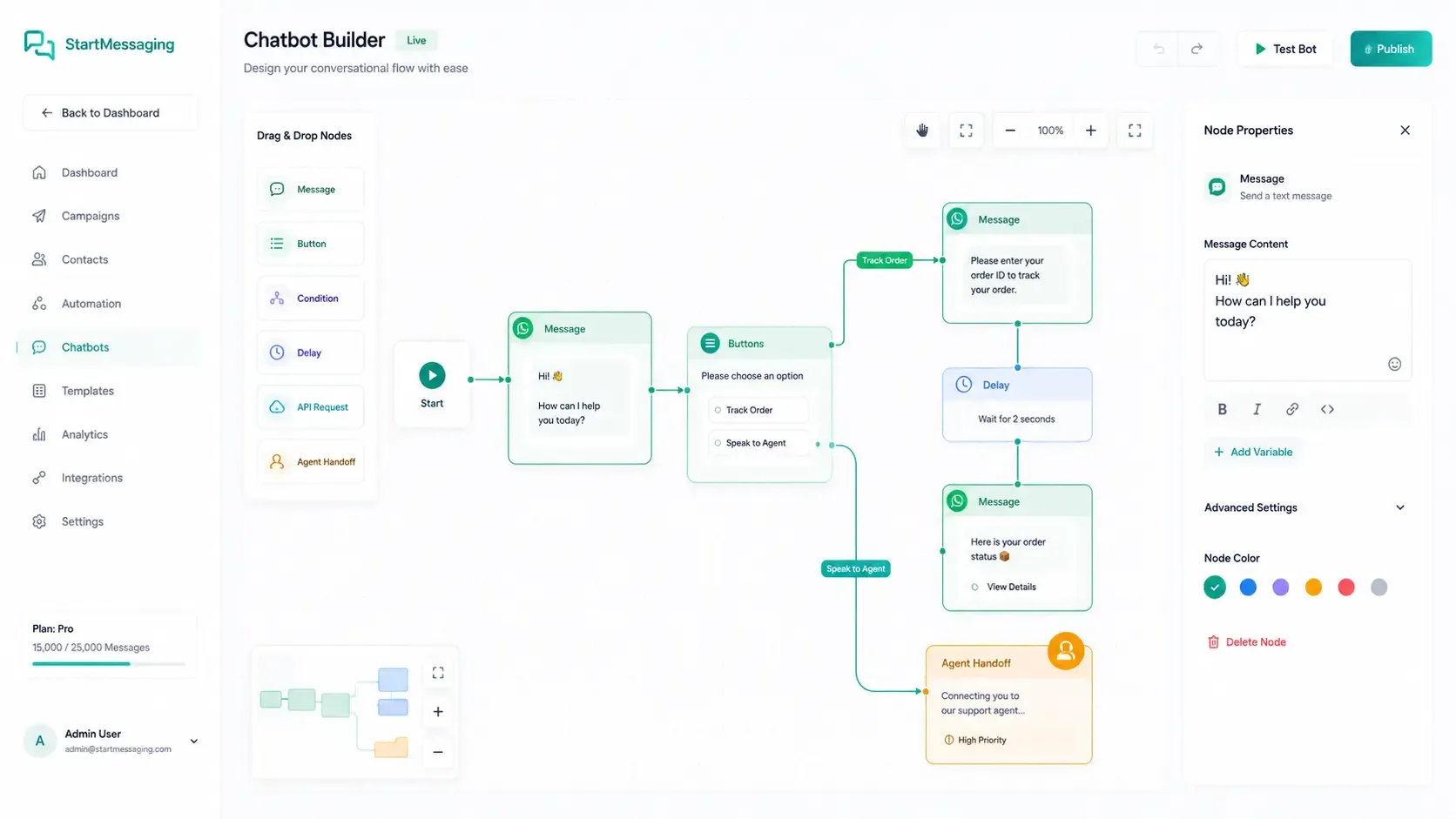
Answers Land in the Chat, as Fields
When a customer submits a form, the shared inbox shows a WhatsApp Form card in the conversation with each answer labelled, including files from photo or document pickers. An address request shows as an address. If WhatsApp sends something that can't be read as fields, the card says so and lets you see exactly what WhatsApp sent, so nothing is lost.
- Each answer shown with a readable label
- The same answers in GET /api/v1/messages/{id}
- And in the form object of the message.received webhook
From Form to Answers in Four Steps
1. Build the form in Meta
Design the screens and questions in Meta's Flow Builder: a lead form, a booking, a feedback survey or anything else your customers need to fill in.
2. Sync it into StartMessaging
On the WhatsApp Forms page, press Sync from Meta. Your forms appear with their status and Meta ID.
3. Attach it to a template
In the template builder, add a Flow (WhatsApp Form) button, pick the form and submit the template. Meta reviews it like any other template.
4. Send it and read the answers
Send the approved template from the dashboard or the API. Through the API, add your own flow token so each submission can be matched to your lead, order or booking.
WhatsApp Form vs. Questions in Chat vs. a Web Form Link
Three ways to collect details from a customer on WhatsApp.
| Capability | WhatsApp Form | Questions in chat | Web form link |
|---|---|---|---|
| Where the customer answers | Inside WhatsApp, on form screens | Inside WhatsApp, one message at a time | In a browser, outside WhatsApp |
| What you receive | Structured fields: key, label, value | Free text you parse yourself | Whatever your form tool sends |
| How you match it to your record | The flow token you send | Phone number and conversation | Your own link parameters |
| Shown in the StartMessaging inbox | ✓ (as a form card with labelled answers) | ✓ (as messages) | |
| How it is sent | A template with a Flow button | Text or interactive messages inside the 24-hour window | A link in a message or a URL button |
| Where it is built | Meta's Flow Builder | Your agents or a chatbot flow | Your web form tool |
Send a form with your own token, get the answers back as fields
Set the flow token with buttonParameters subType "flow". The submission arrives on message.received with form.flowToken, form.fields and, through context, the message that carried the form.
# Send the template whose Flow button opens your WhatsApp Form.
# The flow token comes back on the submission as form.flowToken.
curl -X POST https://waba-api.startmessaging.com/api/v1/messages \
  -H "Authorization: Bearer sm_live_your_api_key" \
  -H "Content-Type: application/json" \
  -H "Idempotency-Key: lead-77-demo-form" \
  -d '{
    "to": "+919812345678",
    "type": "template",
    "template": {
      "name": "book_a_demo",
      "language": "en_US",
      "parameters": [
        { "text": "Asha" }
      ],
      "buttonParameters": [
        { "index": 0, "subType": "flow", "text": "lead-77" }
      ]
    },
    "clientReference": "lead-77"
  }'
// 1. Send the form (needs the messages:send scope)
const res = await fetch('https://waba-api.startmessaging.com/api/v1/messages', {
method: 'POST',
headers: {
'Authorization': 'Bearer ' + process.env.SM_API_KEY, // sm_live_your_api_key
'Content-Type': 'application/json',
'Idempotency-Key': 'lead-77-demo-form',
},
body: JSON.stringify({
to: '+919812345678',
type: 'template',
template: {
name: 'book_a_demo',
language: 'en_US',
parameters: [{ text: 'Asha' }],
buttonParameters: [{ index: 0, subType: 'flow', text: 'lead-77' }],
},
clientReference: 'lead-77',
}),
});
const { data } = await res.json();
console.log(data.id, data.status);
// 2. In your message.received webhook handler (after verifying the signature)
function onMessageReceived(event) {
const form = event.data.message.form;
if (!form) return;
const answers = Object.fromEntries(form.fields.map((f) => [f.key, f.value]));
// form.flowToken === 'lead-77' -> update that lead with the answers
}import os, requests
res = requests.post(
'https://waba-api.startmessaging.com/api/v1/messages',
headers={
'Authorization': f"Bearer {os.environ['SM_API_KEY']}", # sm_live_your_api_key
'Idempotency-Key': 'lead-77-demo-form',
},
json={
'to': '+919812345678',
'type': 'template',
'template': {
'name': 'book_a_demo',
'language': 'en_US',
'parameters': [{'text': 'Asha'}],
'buttonParameters': [{'index': 0, 'subType': 'flow', 'text': 'lead-77'}],
},
'clientReference': 'lead-77',
},
)
data = res.json()['data']
print(data['id'], data['status'])
# Later: read the answers from the message.received webhook,
# or GET /api/v1/messages/{id} for the inbound message (messages:read scope).<?php
$body = json_encode([
'to' => '+919812345678',
'type' => 'template',
'template' => [
'name' => 'book_a_demo',
'language' => 'en_US',
'parameters' => [['text' => 'Asha']],
'buttonParameters' => [
['index' => 0, 'subType' => 'flow', 'text' => 'lead-77'],
],
],
'clientReference' => 'lead-77',
]);
$ch = curl_init('https://waba-api.startmessaging.com/api/v1/messages');
curl_setopt_array($ch, [
CURLOPT_POST => true,
CURLOPT_RETURNTRANSFER => true,
CURLOPT_HTTPHEADER => [
'Authorization: Bearer ' . getenv('SM_API_KEY'), // sm_live_your_api_key
'Content-Type: application/json',
'Idempotency-Key: lead-77-demo-form',
],
CURLOPT_POSTFIELDS => $body,
]);
$data = json_decode(curl_exec($ch), true)['data'];
echo $data['id'] . ' ' . $data['status'];{
"id": "evt_01JCA4M8ZP",
"type": "message.received",
"createdAt": "2026-10-07T11:05:12.000Z",
"workspaceId": "ws_9f2c",
"data": {
"message": {
"id": "msg_8e41",
"conversationId": "conv_3a90",
"contactId": "ct_88b1",
"from": "+919812345678",
"type": "interactive",
"text": "Full name: Asha Rao · City: Pune · Preferred date: 2026-10-12",
"reply": null,
"context": {
"messageId": "msg_7f20",
"clientReference": "lead-77"
},
"form": {
"kind": "flow",
"flowToken": "lead-77",
"flowId": "1187364520093321",
"flowName": "Book a demo",
"fields": [
{ "key": "screen_0_Full_name_0", "label": "Full name", "value": "Asha Rao" },
{ "key": "screen_0_City_1", "label": "City", "value": "Pune" },
{ "key": "screen_0_Preferred_date_2", "label": "Preferred date", "value": "2026-10-12" }
],
"raw": null
},
"referral": null,
"timestamp": "2026-10-07T11:05:10.000Z"
},
"contact": {
"id": "ct_88b1",
"phone": "+919812345678",
"name": "Asha"
}
}
}WhatsApp Forms — FAQ
Can I build the form inside StartMessaging?
No. WhatsApp Forms are Meta Flows, and you build them in Meta's Flow Builder in Meta Business Manager. StartMessaging syncs your forms from Meta, lets you attach them to template buttons, and shows and delivers the answers.
How do I send a WhatsApp Form to a customer?
Attach the form to a Flow button on a template and submit the template to Meta. Once Meta approves it, send it like any other template. Through the API, use POST /api/v1/messages with buttonParameters [{ "index": 0, "subType": "flow", "text": "<your flow token>" }].
How do I match a submission to my lead or booking?
Send a flow token that identifies the record, such as "lead-77". It comes back on the submission as form.flowToken. If the send gave no token, flowToken is "unused". The submission's context also points to the message that carried the form, including its clientReference.
Where can I read the answers?
In three places: as a form card in the shared inbox conversation; through the API with GET /api/v1/messages/{id} or the conversation's message list; and in the form object of the message.received webhook, as { kind, flowToken, flowId, flowName, fields: [{ key, label, value }], raw }.
Are the field labels the ones I wrote in my form?
Not exactly. WhatsApp sends each answer with a response key, and StartMessaging turns that key into a readable label (Flow Builder's screen_0_Full_name_0 reads "Full name"). Map your data on key, which is exactly what WhatsApp sent. If the answers can't be read as JSON, fields is empty and raw holds WhatsApp's original reply.
What can I use WhatsApp Forms for?
Anything where you need several details in one go: lead capture, appointment and demo bookings, feedback surveys and address requests. Answers can be text, yes/no opt-ins, numbers, checkbox choices or files from a photo or document picker.
Which plan includes WhatsApp Forms?
The Business plan, and the 14-day free trial, together with chatbot flows. Syncing forms from Meta and adding a Flow (WhatsApp Form) button to a template need Business. Team covers the shared inbox, contacts, campaigns and keyword auto-replies, but not forms.
Do WhatsApp Forms cost extra?
StartMessaging doesn’t charge per form or per message: WhatsApp Forms come with the Business plan. Meta charges every delivered template, including the one that carries the form, at its category’s rate, directly to your own WhatsApp Business Account.
Related Pages
Start Collecting Answers on WhatsApp
Connect your WhatsApp Business Account, sync your forms from Meta and send your first one during the 14-day free trial. WhatsApp Forms are on the Business plan.